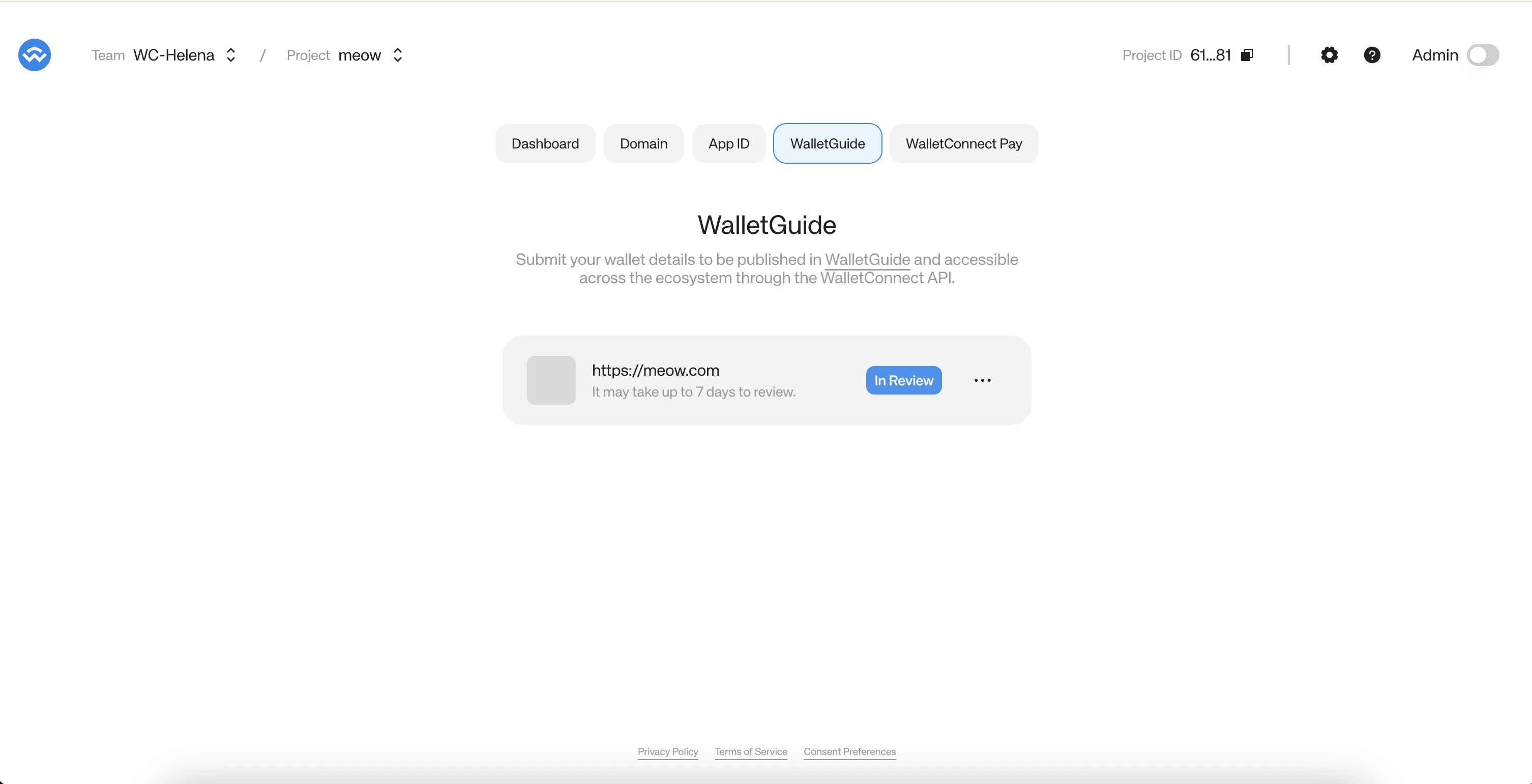
Submitting a project to the WalletConnect Dashboard Explorer is recommended but optional. You can still use WalletConnect services without submitting your project.
However, doing so ensures that your project is listed under WalletGuide and Cloud Explorer API.
Creating a New Project
First, open the WalletConnect Dashboard by navigating to dashboard.walletconnect.com and signing in. If you don’t have an account yet, please create one before proceeding.-
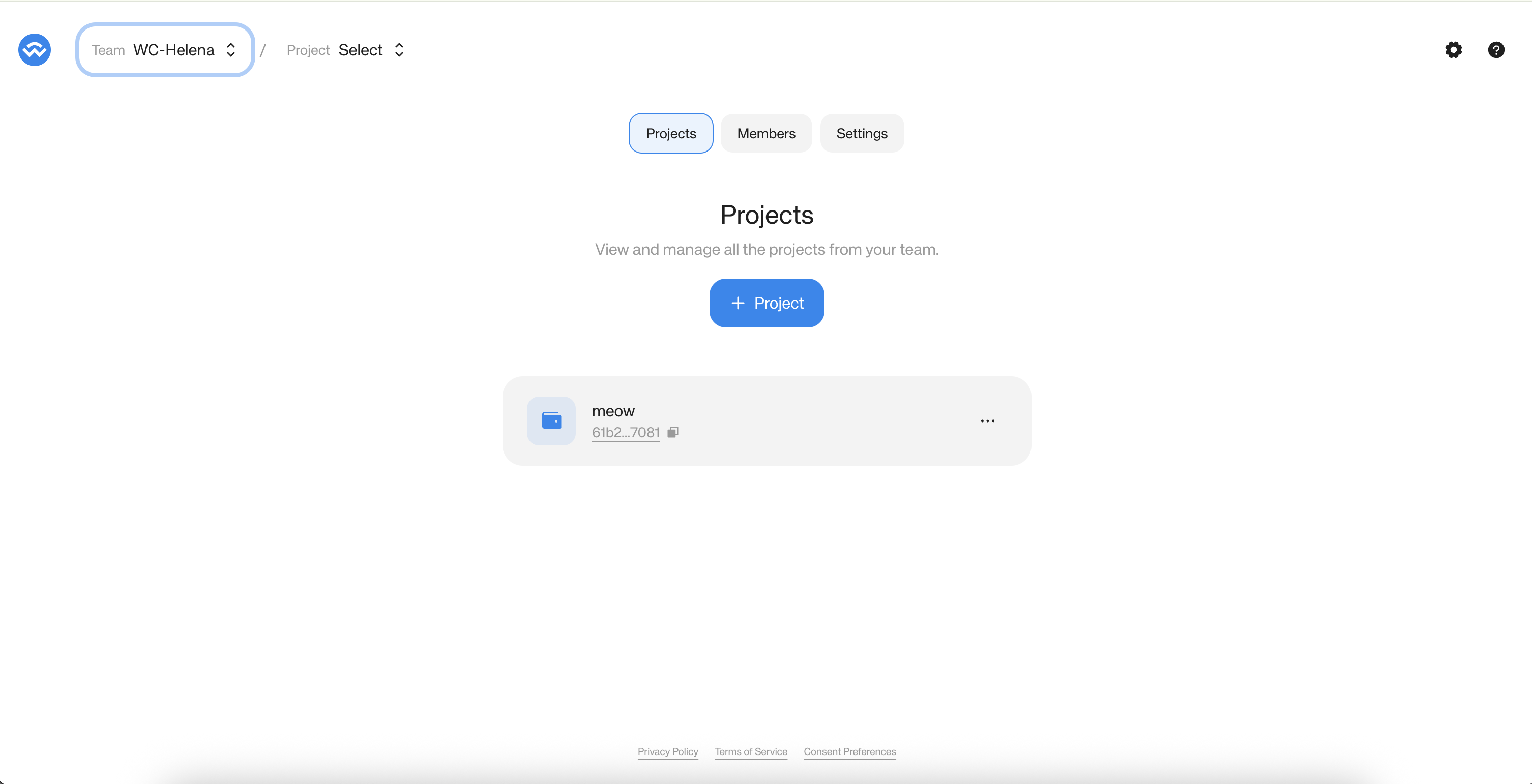
Once you’re logged in, navigate to your team view and click the ”+ Project” button.
-
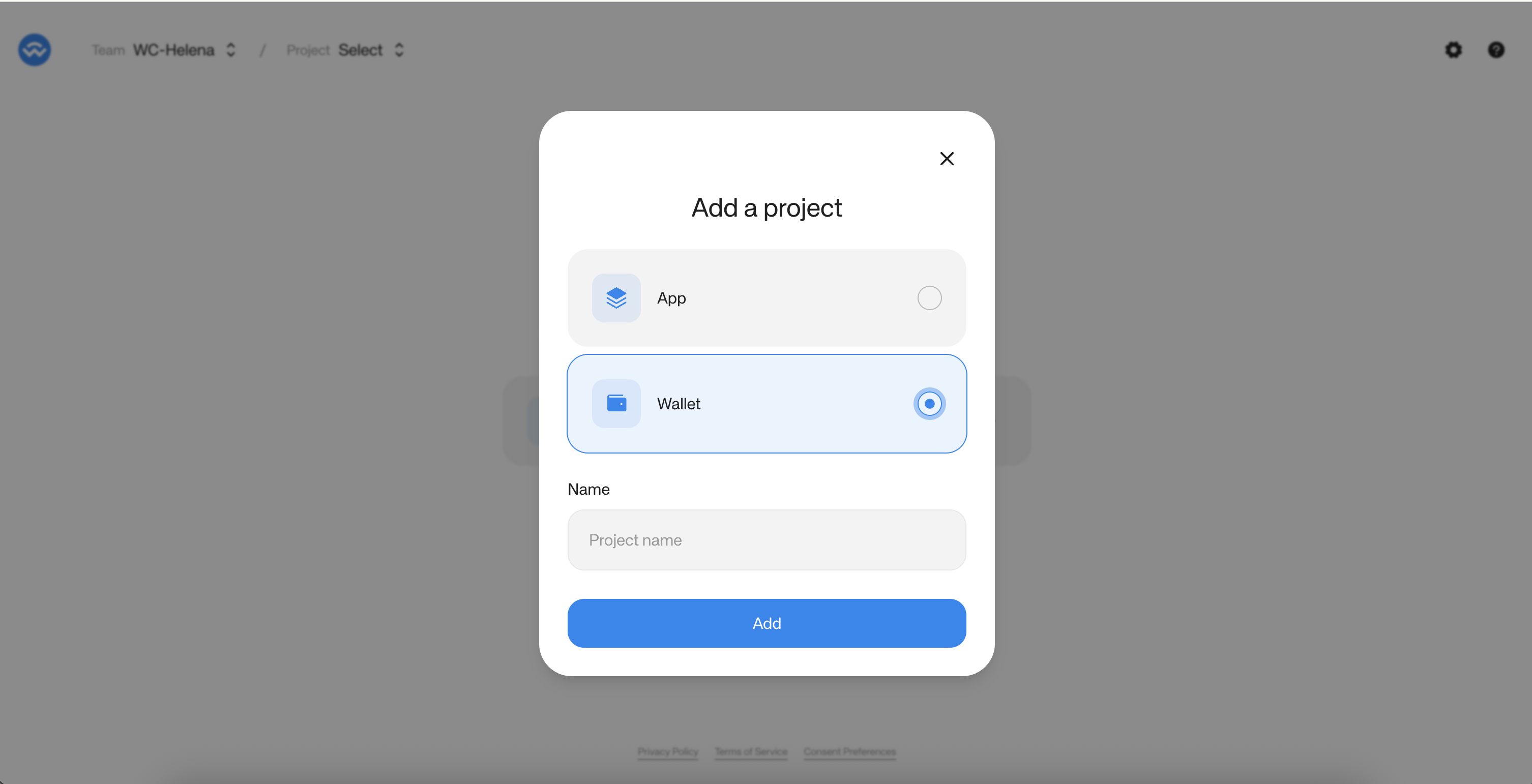
Select “Wallet”, enter a project name, and click “Add”.
Project Details
-
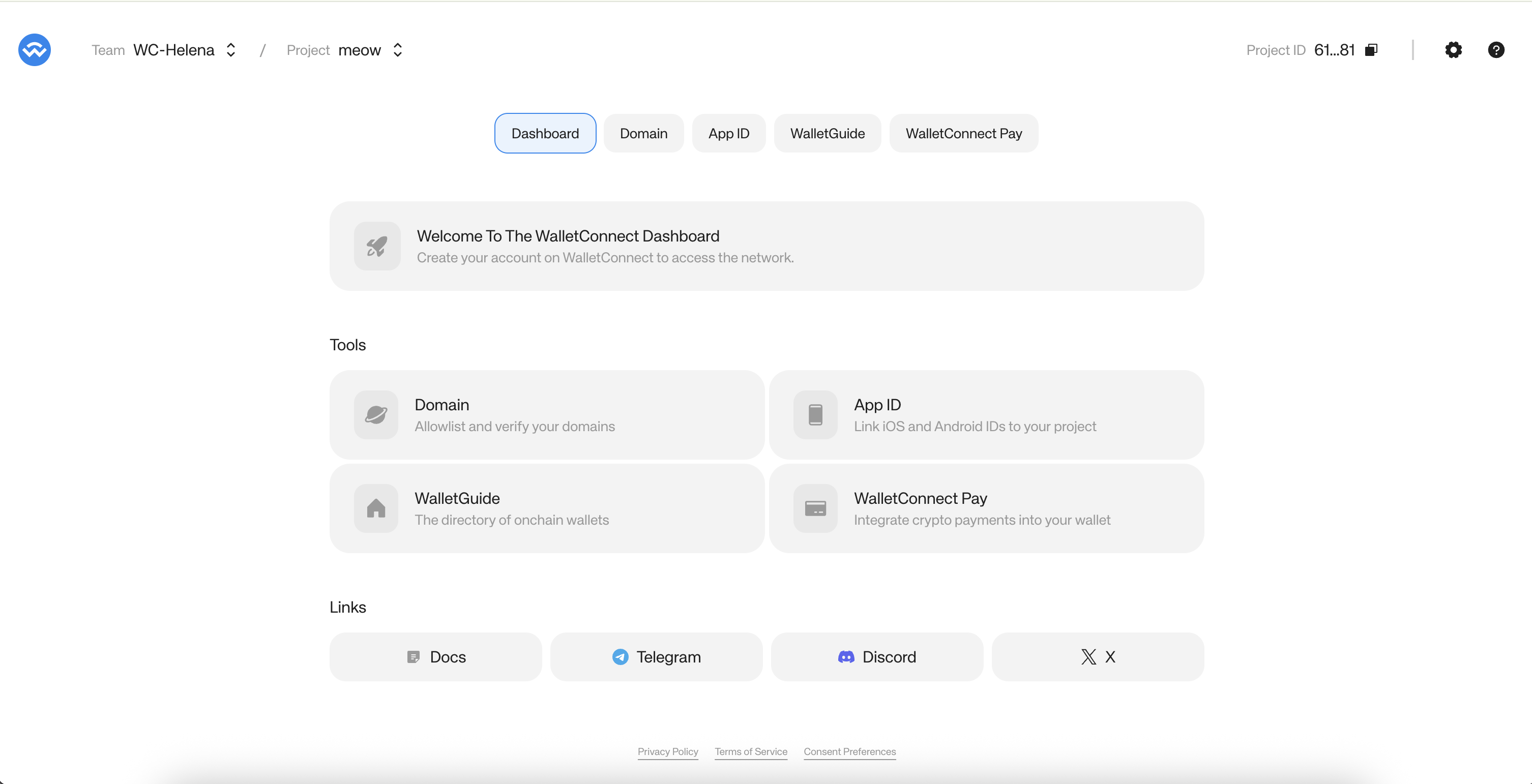
From the project Dashboard, click on the “WalletGuide” tab in the top navigation.
-
Click “Start submission” to begin the submission wizard.
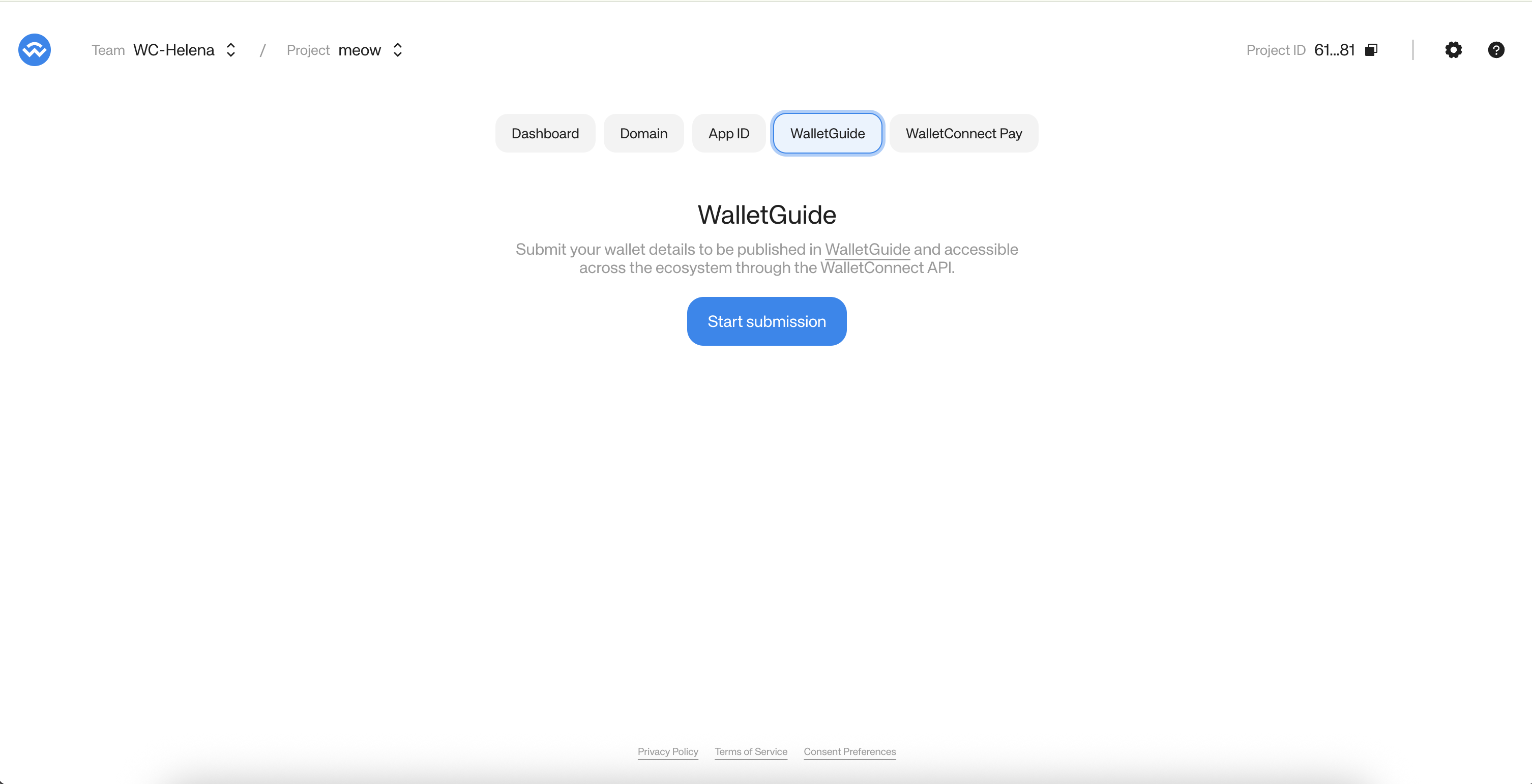
Project Submission
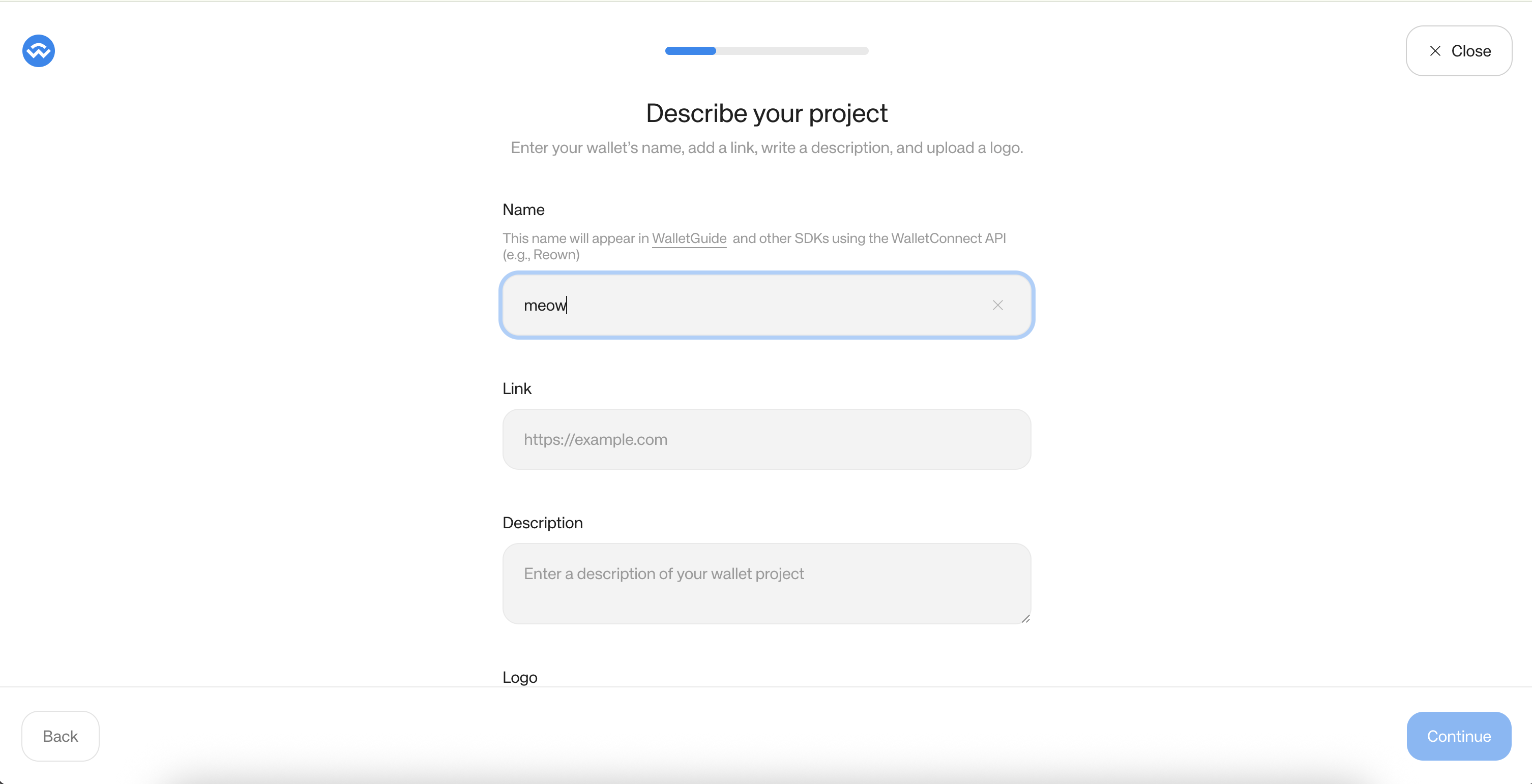
The submission is a multi-step wizard. Follow each step to complete your listing:Step 1 — Describe your project
Fill in your wallet’s basic details:- Name — This will appear in WalletGuide and other SDKs using the WalletConnect API
- Link — The homepage URL of your project
- Description — A short description of your wallet
- Logo — Upload your wallet’s logo
Step 2 — Add wallet types
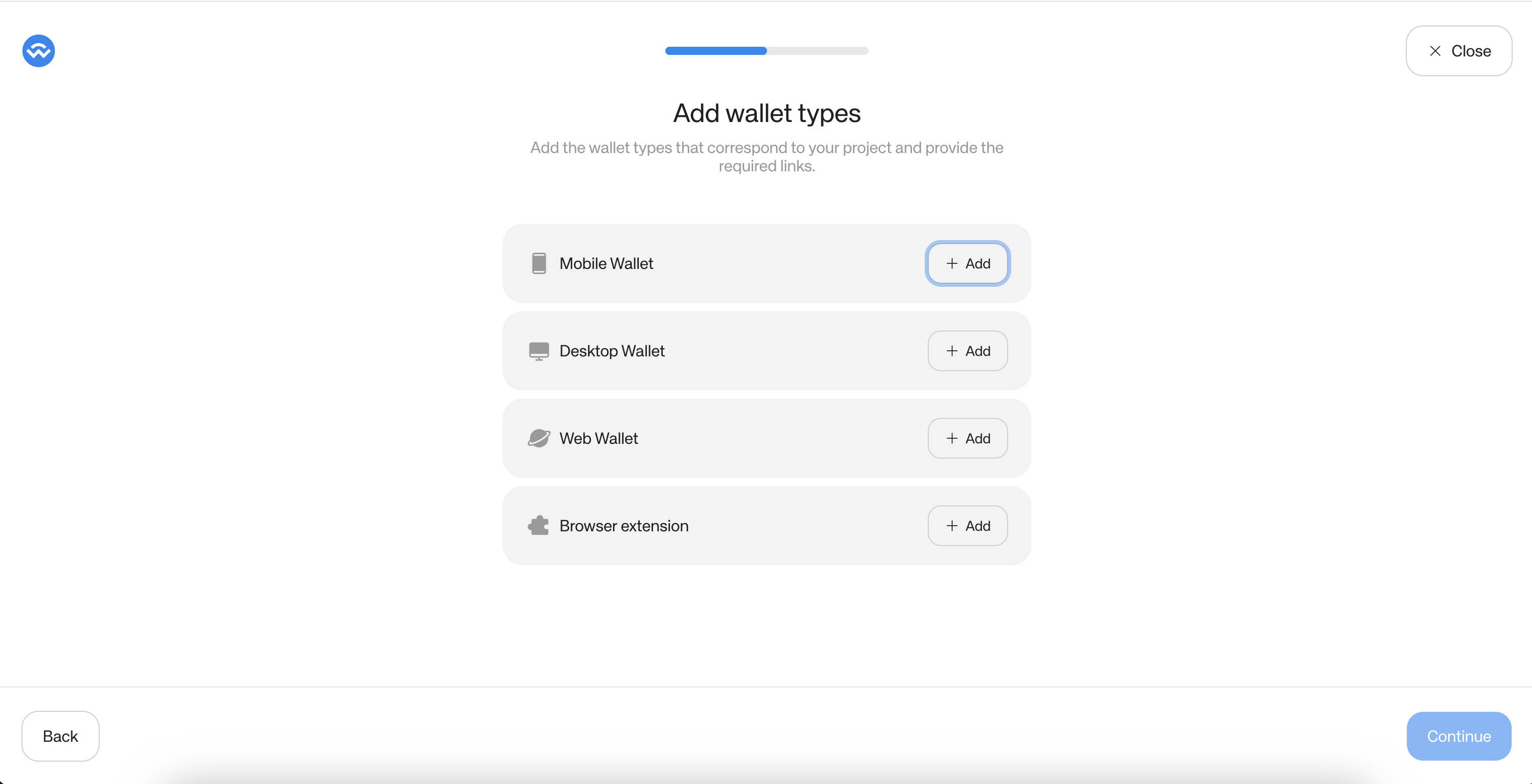
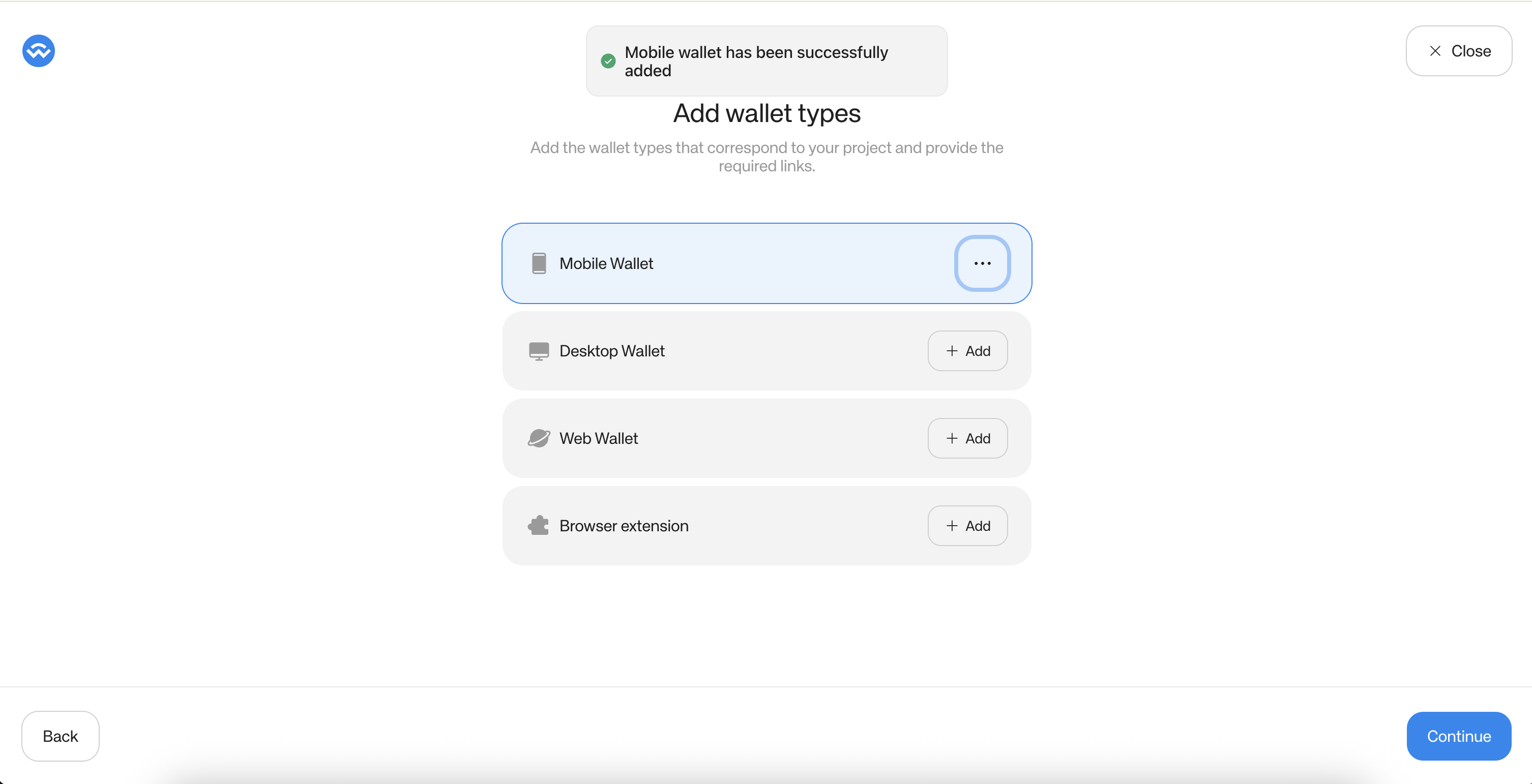
Select the wallet types that apply to your project and provide the required links for each:- Mobile Wallet
- Desktop Wallet
- Web Wallet
- Browser Extension
Step 3 — Add chains
Select all chains your project supports. You can search by name or browse by ecosystem (EVM, Solana, Cosmos, etc.). Toggle “My wallet supports custom chains” if applicable. Click “Continue” when done.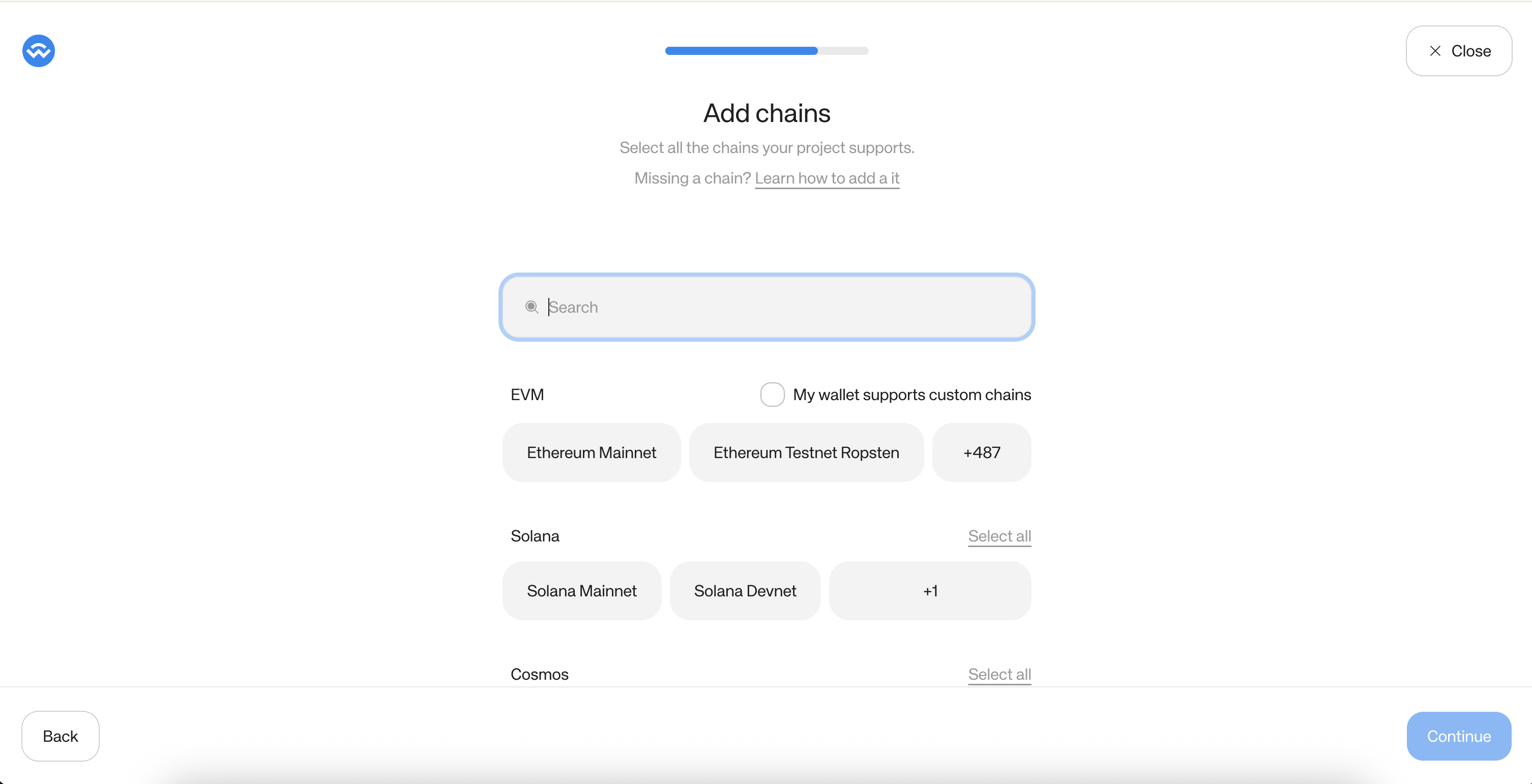
Step 4 — Submit your listing
Add Test instructions to help the review team validate your WalletConnect integration. Clear test instructions help accelerate the review process. Click “Submit” to send your listing for review.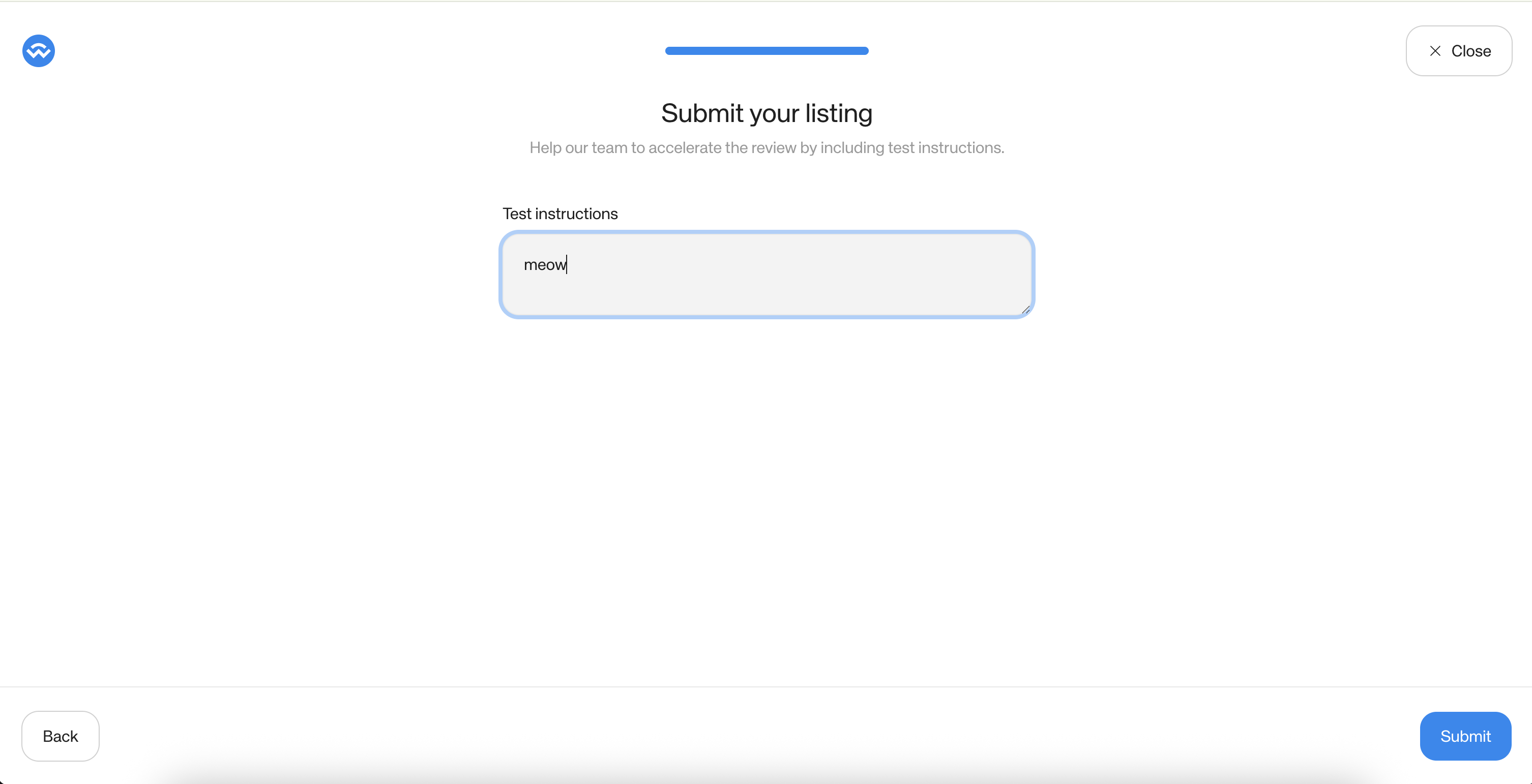
Review Timeline
After submitting, your listing will go through a QA review to verify your WalletConnect integration is working correctly.- Initial review takes 7–10 business days on average. You can track the status in the WalletGuide tab of your project — it will show as “In Review” while pending.
- Once approved, changes take approximately 24 hours to go live on the production WalletGuide page.
How do we test wallets?
In order to offer a great user experience in our APIs and SDKs every Cloud submission goes through a QA process to make sure that the integration of the WalletConnect protocol is working correctly. The following list details our QA flow and how to reproduce it:Chain Specific
The following test cases only apply for wallets supporting a particular set of chains.- EVM
- Solana
FAQ
What exactly should we set for the Reverse Domain field?
What exactly should we set for the Reverse Domain field?
You should set the EIP-6963 RDNS (Reverse Domain Name System) value of your wallet.
This value uniquely identifies your wallet and allows us to properly detect and discover it when it is installed in the user’s browser.
What is the purpose of the reverse domain in the context of a browser extension?
What is the purpose of the reverse domain in the context of a browser extension?
In the context of a browser extension, the reverse domain (RDNS):
- Serves as a unique identifier for your wallet
- Enables wallet discovery via the EIP-6963 standard
- Allows our system to detect when your wallet extension is installed
What’s Next?
Now depending on whether or not your submission met all parameters, you will receive an email from the WalletConnect team with the status of your submission. The WalletGuide tab of your project will also reflect the current status.